> ## Documentation Index
> Fetch the complete documentation index at: https://danswer-mintlify-deep-research-1773355783.mintlify.site/llms.txt
> Use this file to discover all available pages before exploring further.
# MCP
> Configure Model Context Protocol (MCP) actions in Onyx
This page is still a work in progress. A full MCP guide is coming soon!
Model Context Protocol (MCP) enables AI Agents to invoke tools and services in a controlled manner.
You can configure Onyx to be an MCP client and allow your Agents to retrieve data or perform operations.
Onyx can only act as an MCP client. The Onyx MCP server is coming soon!
## MCP in Onyx
Click your user profile icon and select **Admin Panel** and select the **Actions** tab in the sidebar.
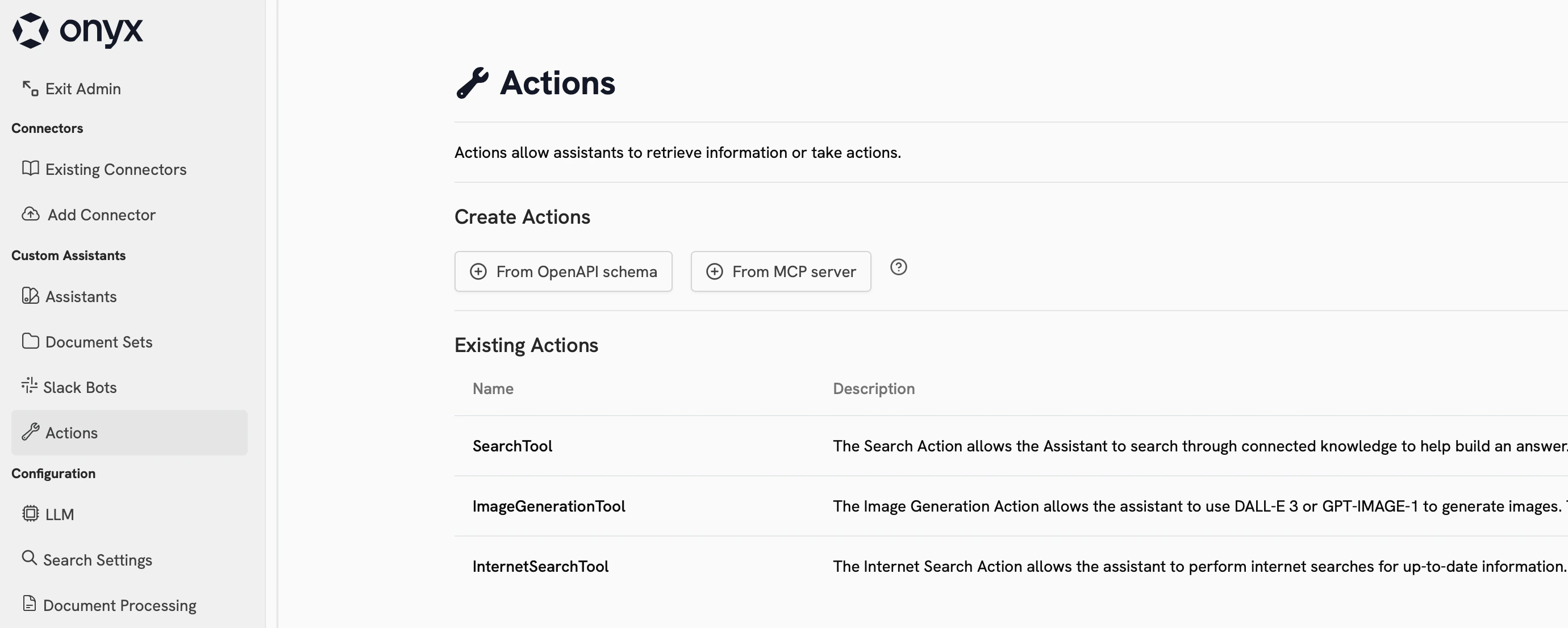 Select the **From MCP server** under **Create Action**.
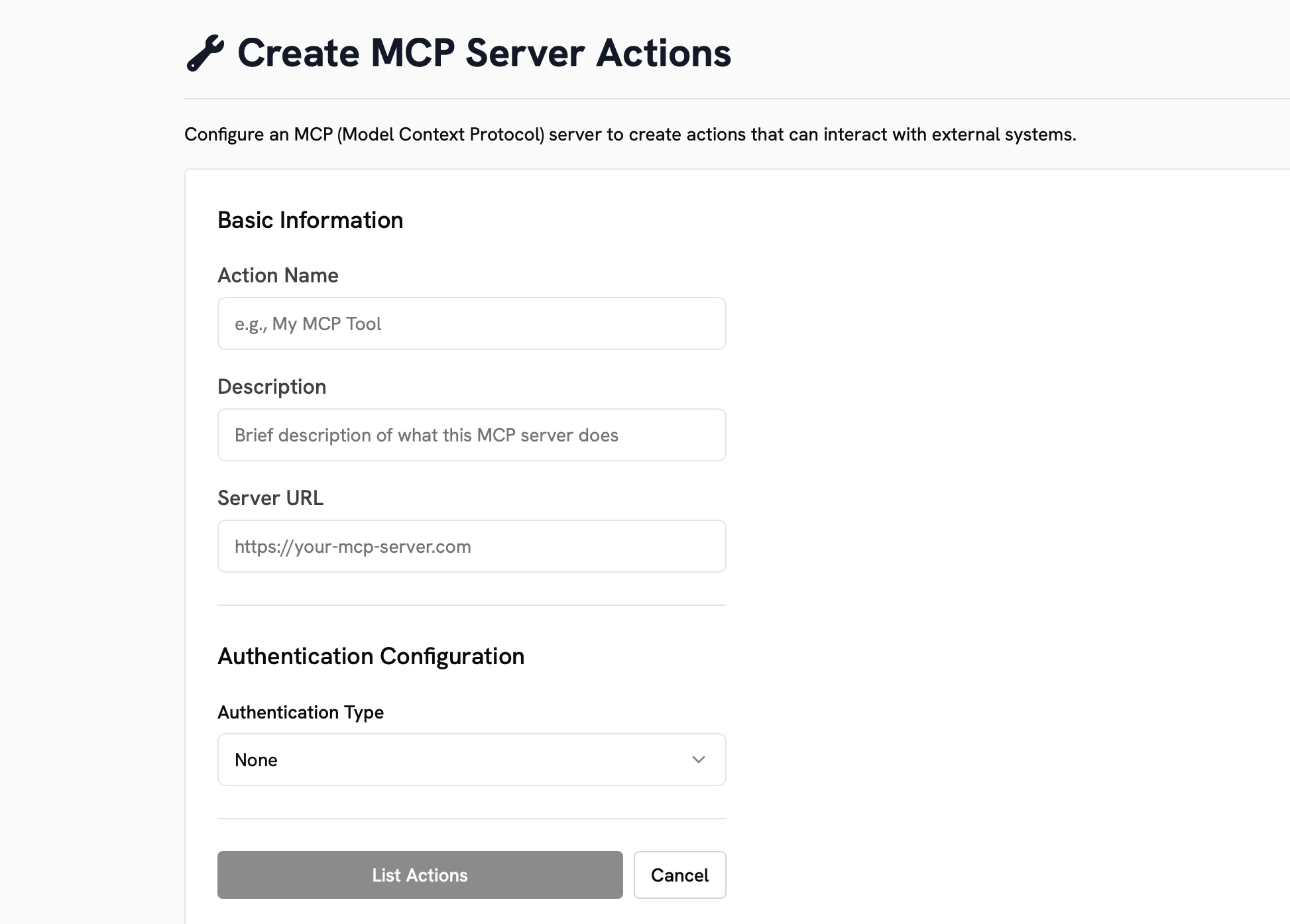
Fill out the fields and select your **Authentication Type**.
Click **List Actions** to see the available actions from your MCP server.
Select the **From MCP server** under **Create Action**.
Fill out the fields and select your **Authentication Type**.
Click **List Actions** to see the available actions from your MCP server.