> ## Documentation Index
> Fetch the complete documentation index at: https://danswer-mintlify-deep-research-1773355783.mintlify.site/llms.txt
> Use this file to discover all available pages before exploring further.
# Overview
> Actions in Onyx
Actions extend your agents beyond basic conversation by enabling them to perform specific tasks and interact with
external systems.
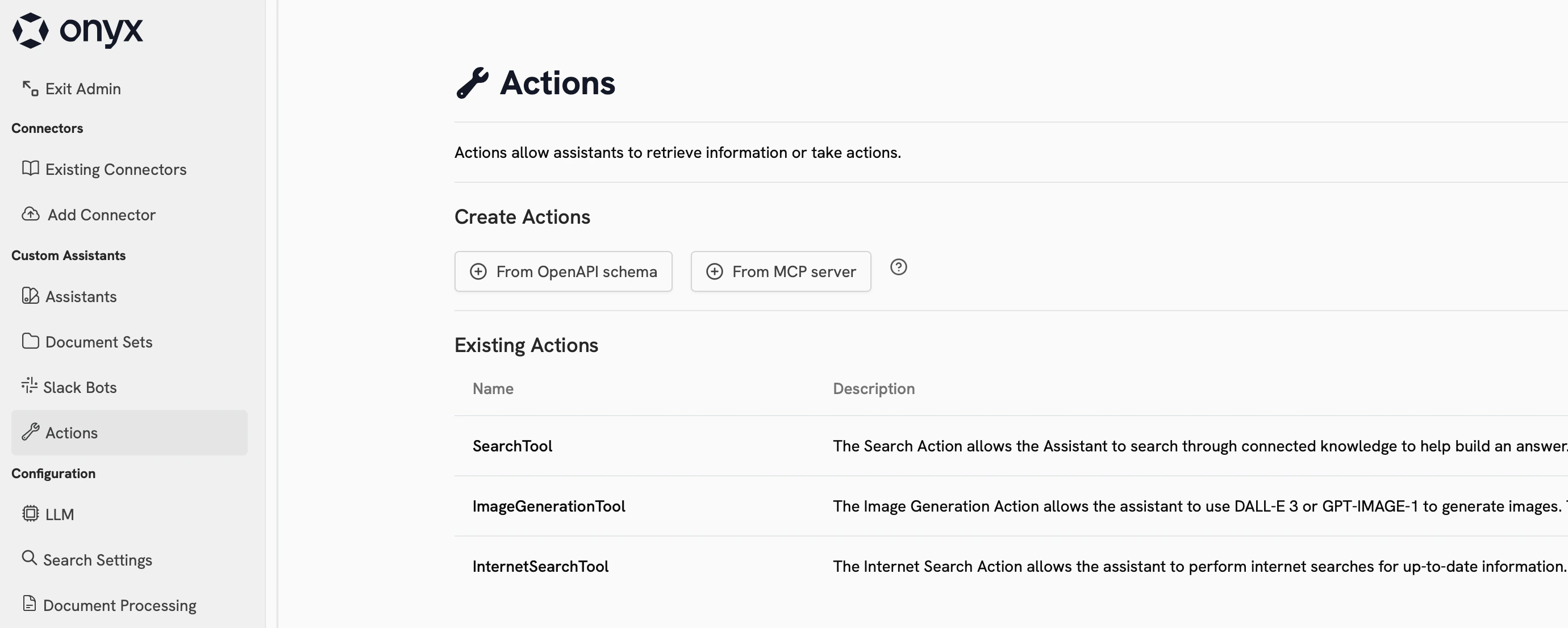
## Actions Dashboard
Actions can be viewed and configured in the **Actions** tab of the Admin Panel sidebar.
 ### Built-in Actions
Onyx comes with 4 built-in Actions:
| Name | Description | Requires Config | Provider Choices |
| ---------------- | ----------------------------------------------------------------------- | --------------- | ----------------------------------------- |
| Internal Search | Search through your organization's indexed documents and knowledge base | Yes | Built-in with swappable components |
| Web Search | Search the internet for real-time information and current events | Yes | Google, Serper, Exa, Firecrawl (optional) |
| Code Interpreter | Execute Python code, analyze data, and generate visualizations | No | Built-in |
| Image Generation | Create images from text descriptions using AI models | Yes | OpenAI, Azure OpenAI |
### Custom Actions
You can configure custom Actions in Onyx using Model Context Protocol (MCP) or an OpenAPI specification.
Click the cards below to learn more about each option:
Connect Onyx to a Model Context Protocol (MCP) server
Create custom actions in Onyx with an OpenAPI specification
## Using Actions
To use an Action, you must configure an Agent to have access to it.
Onyx's built-in Actions are available in the general Chat experience.
Once your Agent has access to the action, it will automatically determine when and which Actions to invoke.
## Next Steps
Configure the Web Search Action to use your preferred search provider
Configure an Agent to use your Custom Action
### Built-in Actions
Onyx comes with 4 built-in Actions:
| Name | Description | Requires Config | Provider Choices |
| ---------------- | ----------------------------------------------------------------------- | --------------- | ----------------------------------------- |
| Internal Search | Search through your organization's indexed documents and knowledge base | Yes | Built-in with swappable components |
| Web Search | Search the internet for real-time information and current events | Yes | Google, Serper, Exa, Firecrawl (optional) |
| Code Interpreter | Execute Python code, analyze data, and generate visualizations | No | Built-in |
| Image Generation | Create images from text descriptions using AI models | Yes | OpenAI, Azure OpenAI |
### Custom Actions
You can configure custom Actions in Onyx using Model Context Protocol (MCP) or an OpenAPI specification.
Click the cards below to learn more about each option:
Connect Onyx to a Model Context Protocol (MCP) server
Create custom actions in Onyx with an OpenAPI specification
## Using Actions
To use an Action, you must configure an Agent to have access to it.
Onyx's built-in Actions are available in the general Chat experience.
Once your Agent has access to the action, it will automatically determine when and which Actions to invoke.
## Next Steps
Configure the Web Search Action to use your preferred search provider
Configure an Agent to use your Custom Action