> ## Documentation Index
> Fetch the complete documentation index at: https://danswer-mintlify-deep-research-1773355783.mintlify.site/llms.txt
> Use this file to discover all available pages before exploring further.
# Web Search
> Enable web search capabilities for your AI Agents in Onyx
The web search action allows your Agents to query the internet and retrieve real-time information from web sources.
## Web Search in Onyx
### On Onyx Cloud
Web search is already active and ready to use on Onyx Cloud - no additional configuration required!
### Self-Hosted
Click your user profile icon and select Admin Panel and select the Web Search tab in the sidebar.
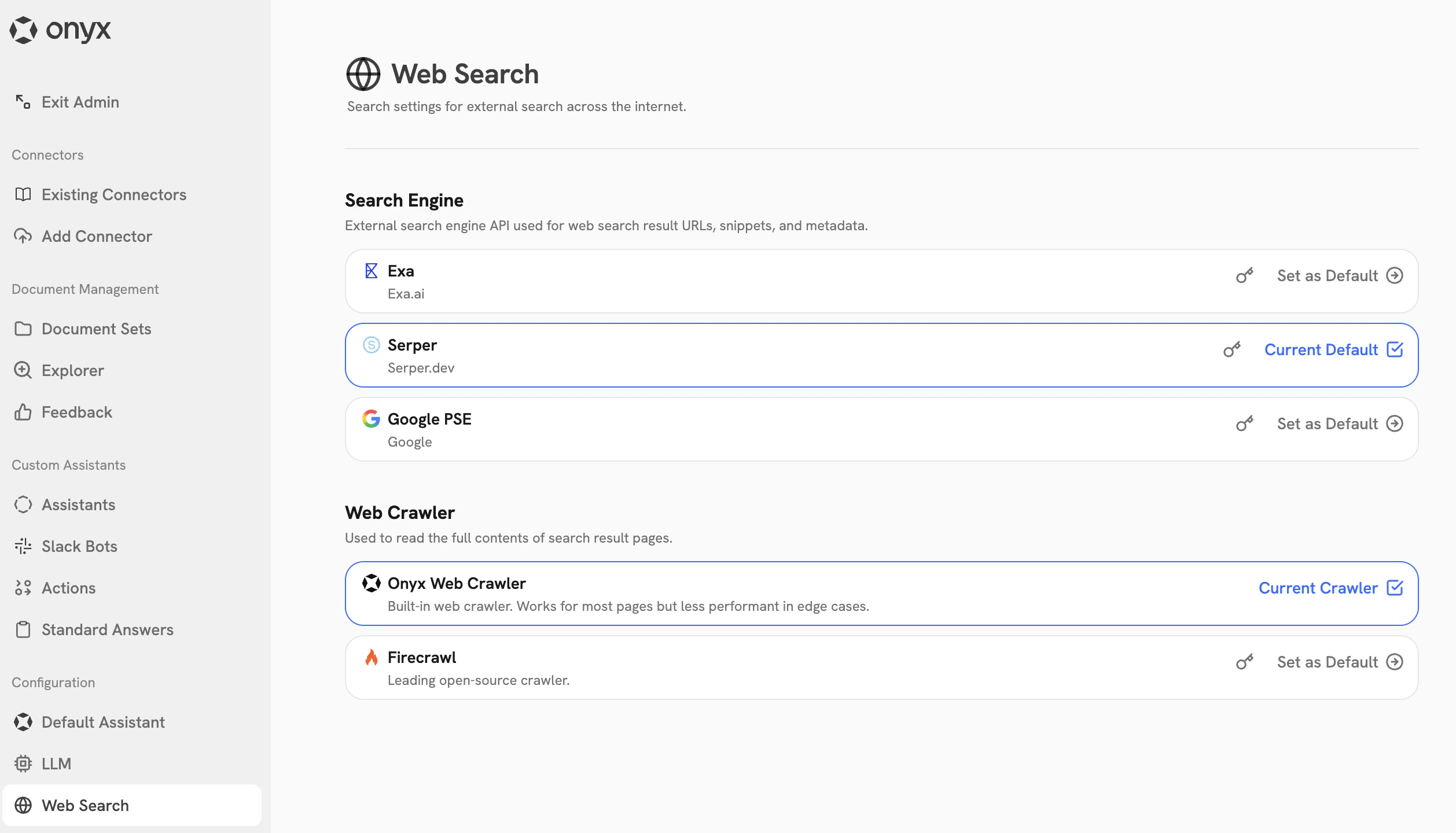 We currently support the following web search providers: Exa AI, Serper, and Google PSE. To set any ofthem up,
follow the steps below.
We currently support the following web search providers: Exa AI, Serper, and Google PSE. To set any ofthem up,
follow the steps below.
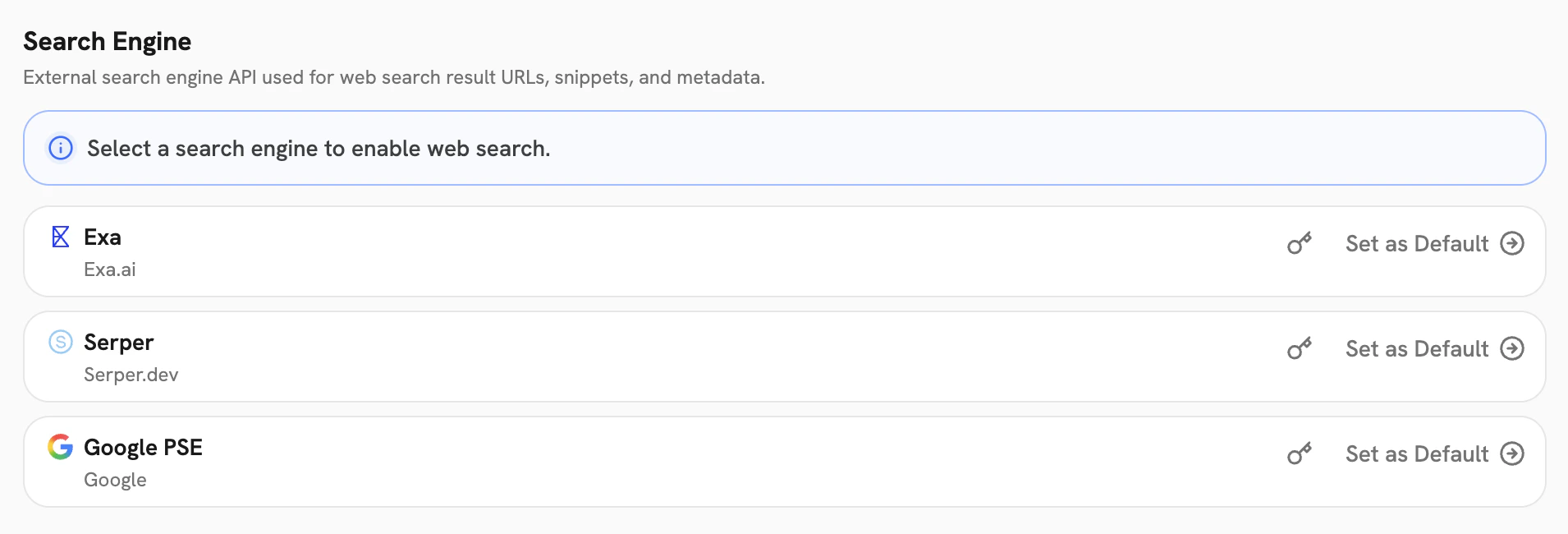 Create an Exa API key in the [Exa AI dashboard](https://exa.ai/dashboard).
In Onyx, click **Connect** and paste the API key in the **API Key** field.
Create a Serper API key in the [Serper dashboard](https://serper.dev/dashboard).
In Onyx, click **Connect** and paste the API key in the **API Key** field.
Create a Google PSE API key in the [Google PSE
dashboard](https://programmablesearchengine.google.com/controlpanel/all).
In Onyx,
click **Connect** and paste the API key in the **API Key** field and the Search Engine ID in the **Search Engine
ID** field.
We currently support the following web crawlers: Onyx web crawler and Firecrawl. To set them up,
follow the steps below.
Create an Exa API key in the [Exa AI dashboard](https://exa.ai/dashboard).
In Onyx, click **Connect** and paste the API key in the **API Key** field.
Create a Serper API key in the [Serper dashboard](https://serper.dev/dashboard).
In Onyx, click **Connect** and paste the API key in the **API Key** field.
Create a Google PSE API key in the [Google PSE
dashboard](https://programmablesearchengine.google.com/controlpanel/all).
In Onyx,
click **Connect** and paste the API key in the **API Key** field and the Search Engine ID in the **Search Engine
ID** field.
We currently support the following web crawlers: Onyx web crawler and Firecrawl. To set them up,
follow the steps below.
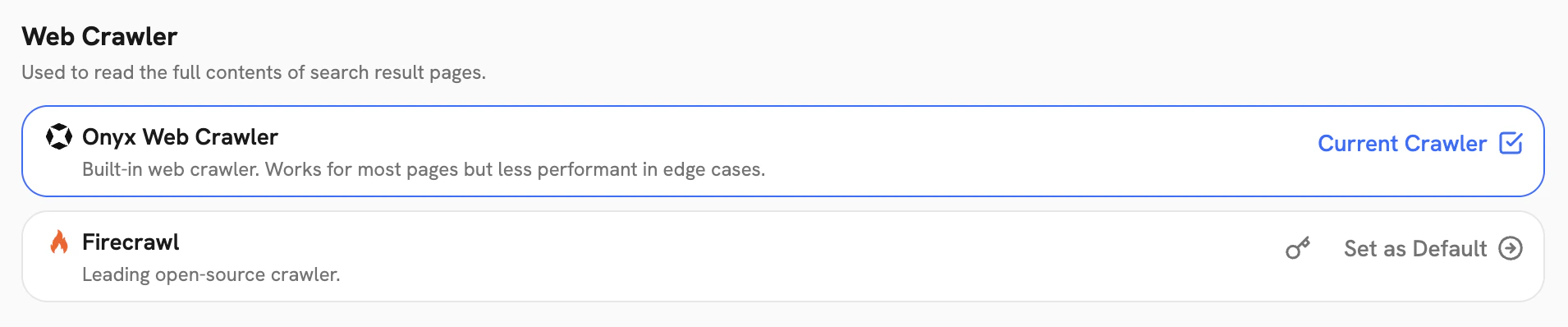 **(Recommended)** It is already set up and ready to use, no additional setup required.
Create a Firecrawl API key in the [Firecrawl dashboard](https://firecrawl.com/dashboard).
In Onyx, click **Connect** and paste the API key in the **API Key** field.
Make sure to **Set as Default** the provider if you have multiple providers set up for the search engine and web
crawler. You can change it at any time.
**(Recommended)** It is already set up and ready to use, no additional setup required.
Create a Firecrawl API key in the [Firecrawl dashboard](https://firecrawl.com/dashboard).
In Onyx, click **Connect** and paste the API key in the **API Key** field.
Make sure to **Set as Default** the provider if you have multiple providers set up for the search engine and web
crawler. You can change it at any time.
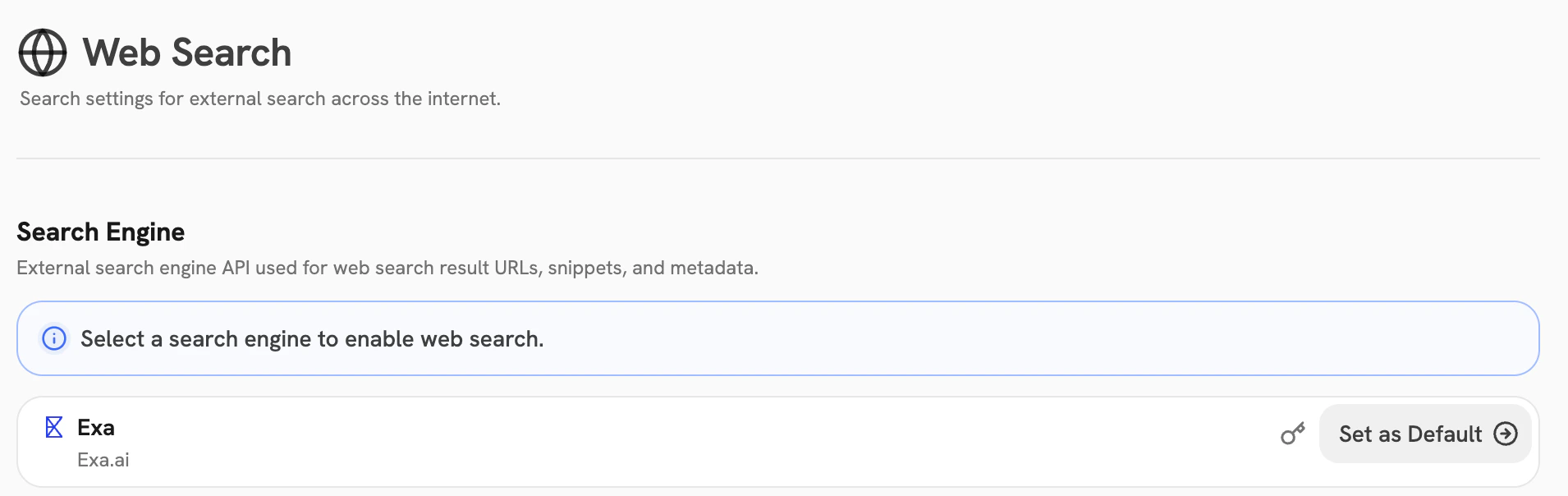 Make sure your Agent has the Web Search Action enabled!