> ## Documentation Index
> Fetch the complete documentation index at: https://danswer-mintlify-deep-research-1773355783.mintlify.site/llms.txt
> Use this file to discover all available pages before exploring further.
# Overview
> Managing AI agents
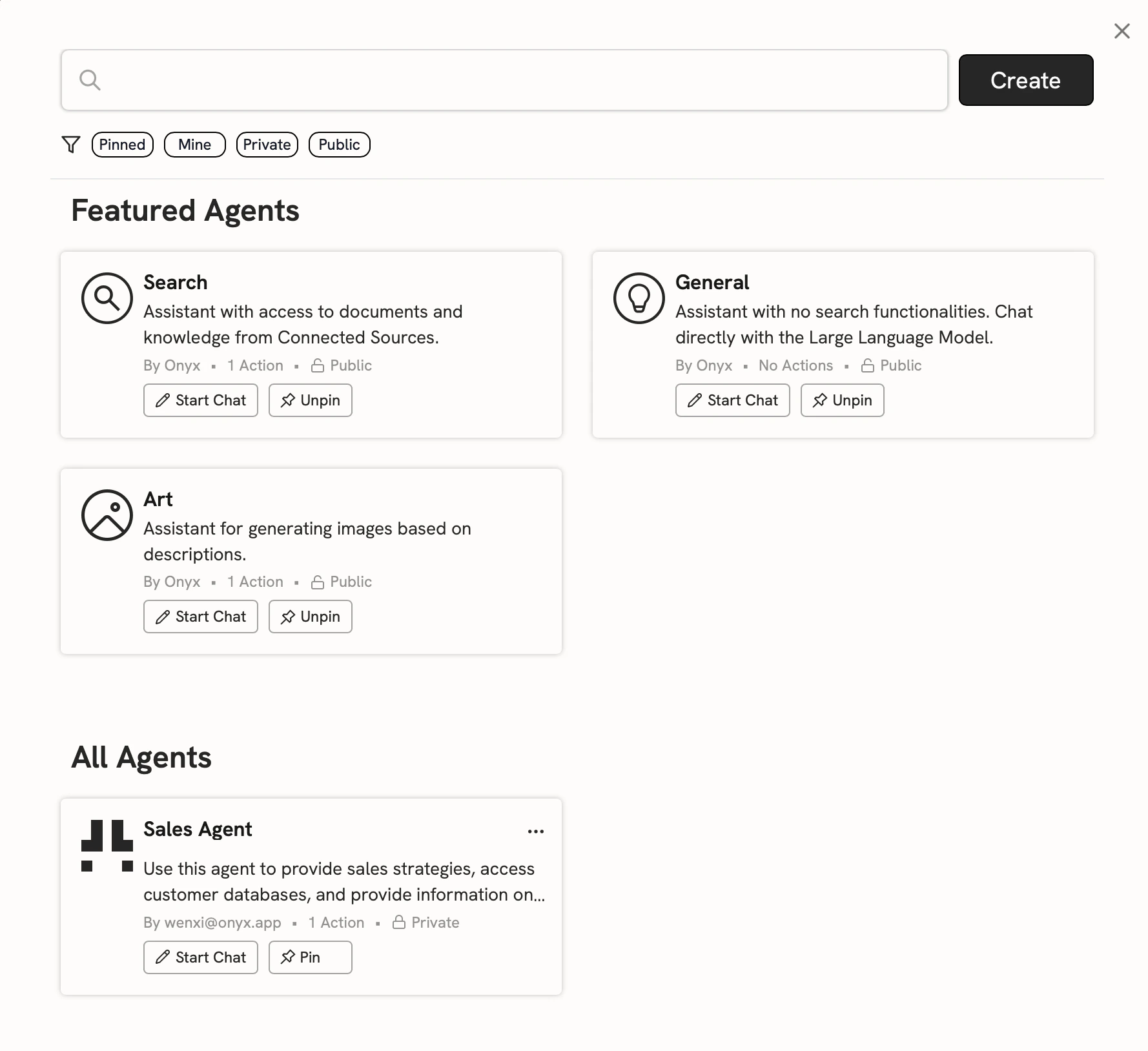
Onyx Agents are customized AI assistants with unique instructions, knowledge sources, and Actions.
## Managing Agents
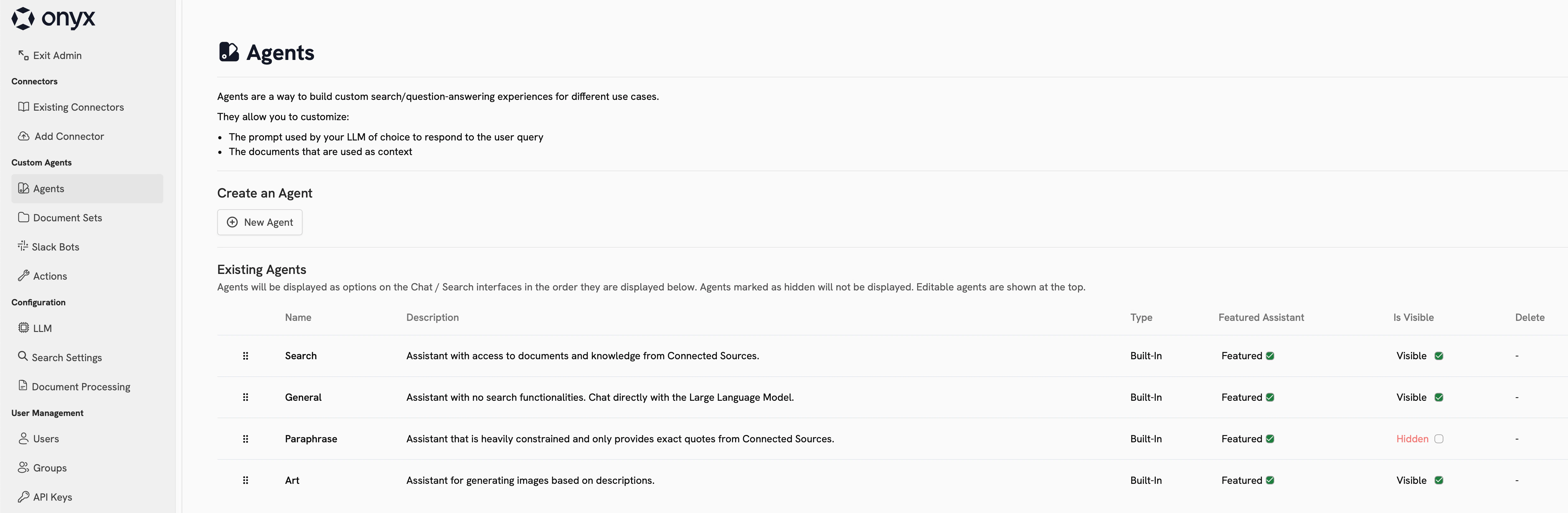
On the Agents page in the Admin Panel, you can see all of the Agents in your organization.
From this page, you can create new Agents, edit existing configurations, designate featured Agents,
hide or show certain Agents, and delete them.
 ## Creating Agents
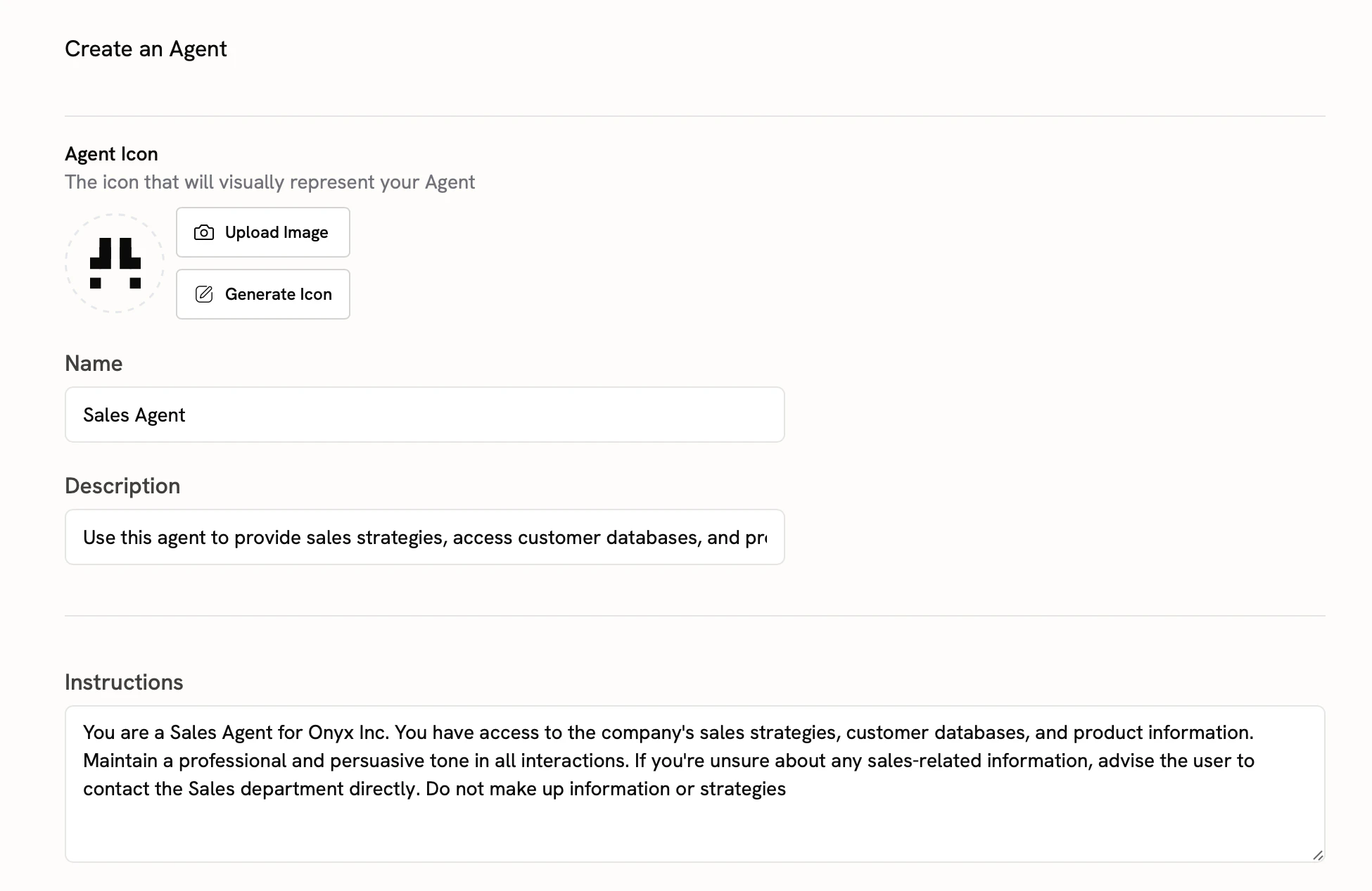
Navigate to the **Admin Panel** and click **Agents** in the sidebar. Click **New Agent** to create a new agent.
Give your Assistant a name, description, instructions, and maybe even an icon.
## Creating Agents
Navigate to the **Admin Panel** and click **Agents** in the sidebar. Click **New Agent** to create a new agent.
Give your Assistant a name, description, instructions, and maybe even an icon.
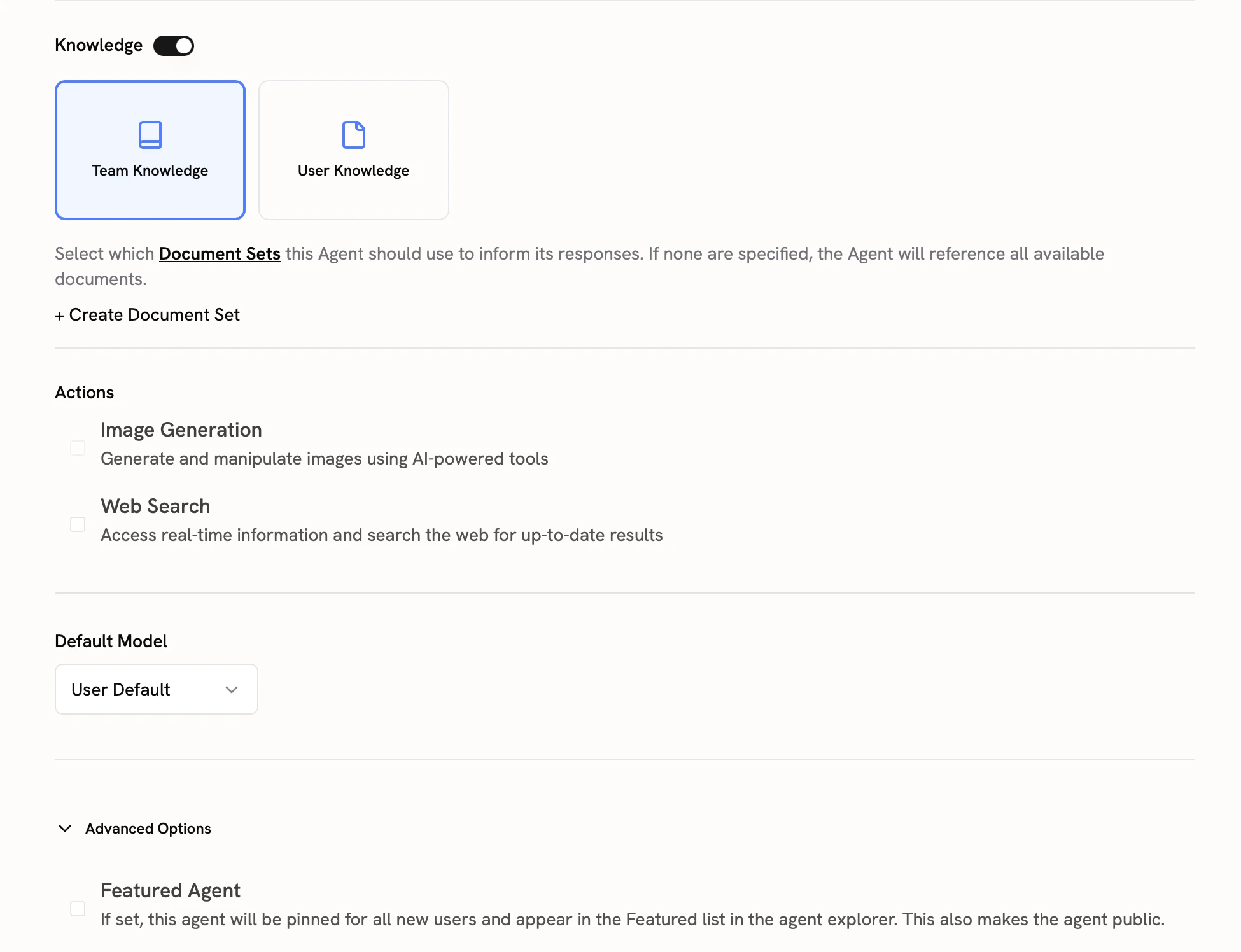
 Add Actions to your Agent to enable it to perform specific tasks. See [Actions Overview](/admins/actions/overview)
for more information.
You can also configure the default language model for your Agent.
If you set your Agent as **Featured**, your users will see it at the top of the Agents explorer.
Add Actions to your Agent to enable it to perform specific tasks. See [Actions Overview](/admins/actions/overview)
for more information.
You can also configure the default language model for your Agent.
If you set your Agent as **Featured**, your users will see it at the top of the Agents explorer.
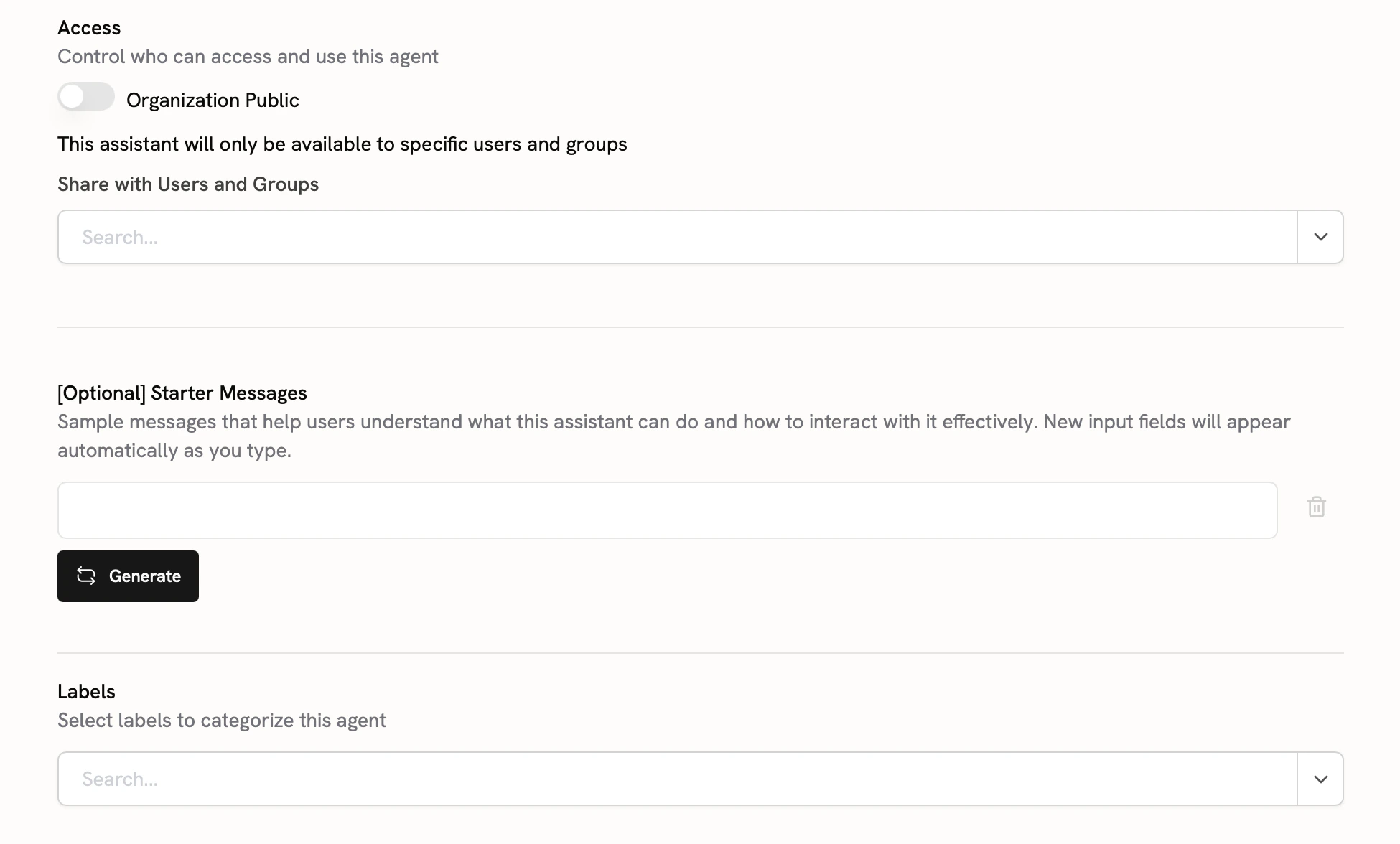
 You can publish your Agent to your entire organization or share it with specific users or groups.
To help users understand how to use your Agent, you can add **Starter Messages**.
**Labels** help users find and categorize your Agent.
You can publish your Agent to your entire organization or share it with specific users or groups.
To help users understand how to use your Agent, you can add **Starter Messages**.
**Labels** help users find and categorize your Agent.
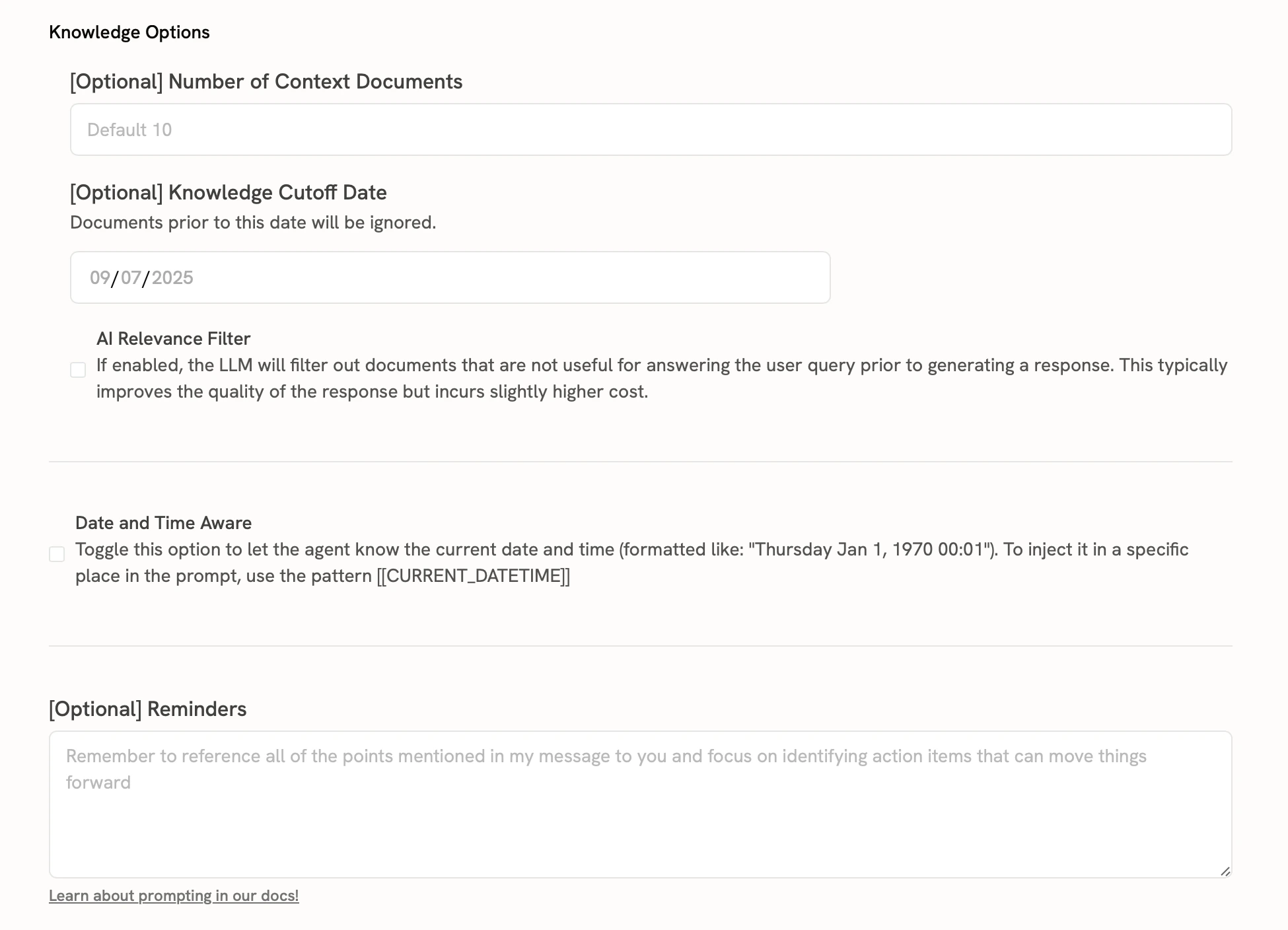
 Finally, you can configure certain knowledge options for your Agent.
 Once you've published your Agent, you can find it in the **Explore Agents** page from the Chat sidebar.