> ## Documentation Index
> Fetch the complete documentation index at: https://danswer-mintlify-deep-research-1773355783.mintlify.site/llms.txt
> Use this file to discover all available pages before exploring further.
# Custom Inference Provider
> Custom Inference Provider
## Guide
If you want to use an AI provider that is not supported by Onyx, you can configure a custom inference provider.
Your custom provider must provide OpenAI-compatible API endpoints.
Determine your provider's API base URL.
It should look something like `https://yourprovider.com/v1` or `http://localhost:12345/v1`.
Access the Admin Panel from your user profile icon → **Admin Panel** → **LLM**
Select **Add Custom LLM Provider** from the available providers.
Give your provider a **Display Name**.
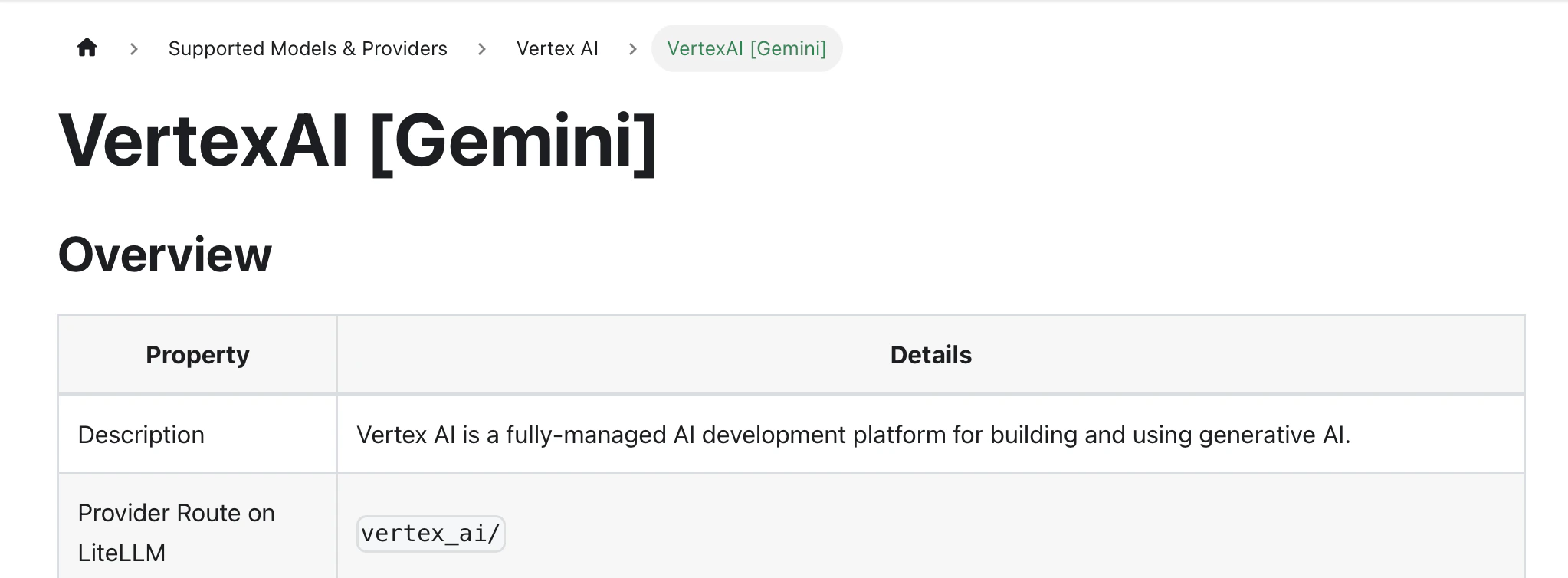
Enter your model's **Provider Name**.
The **Provider Name** must match Litellm's [list of supported providers](https://docs.litellm.ai/docs/providers).
In this example, the provider name is `vertex_ai`.
 Enter the provider's **Base URL**.
Fill out the other optional fields if applicable.
In the **Model Configurations** section, enter each of the models you want to use with your provider.
The **Default Model** is selected automatically for new custom Agents and Chat sessions.
Designating a **Fast Model** is optional.
This **Fast Model** is used behind the scenes for quick operations such as evaluating the type of message,
generating different queries (query expansion), and naming the chat session.
If you select a Fast Model,
make sure it is a relatively quick and cost-effective model like GPT-4.1-mini or Claude 3.7 Sonnet.
Lastly, you may select whether or not the provider is public to all users in Onyx.
If set to private,
the provider's models will be available to Admins and User Groups you explicitly assign the provider to.
Enter the provider's **Base URL**.
Fill out the other optional fields if applicable.
In the **Model Configurations** section, enter each of the models you want to use with your provider.
The **Default Model** is selected automatically for new custom Agents and Chat sessions.
Designating a **Fast Model** is optional.
This **Fast Model** is used behind the scenes for quick operations such as evaluating the type of message,
generating different queries (query expansion), and naming the chat session.
If you select a Fast Model,
make sure it is a relatively quick and cost-effective model like GPT-4.1-mini or Claude 3.7 Sonnet.
Lastly, you may select whether or not the provider is public to all users in Onyx.
If set to private,
the provider's models will be available to Admins and User Groups you explicitly assign the provider to.