> ## Documentation Index
> Fetch the complete documentation index at: https://danswer-mintlify-deep-research-1773355783.mintlify.site/llms.txt
> Use this file to discover all available pages before exploring further.
# Google AI
> Configure Google Vertex AI models for use with Onyx
## Guide
This guide walks through setting up Google Vertex AI for use with Onyx.
Google Vertex AI and Google AI Studio serve the same models. However,
Vertex AI has enterprise-grade features that may be useful for your organization.
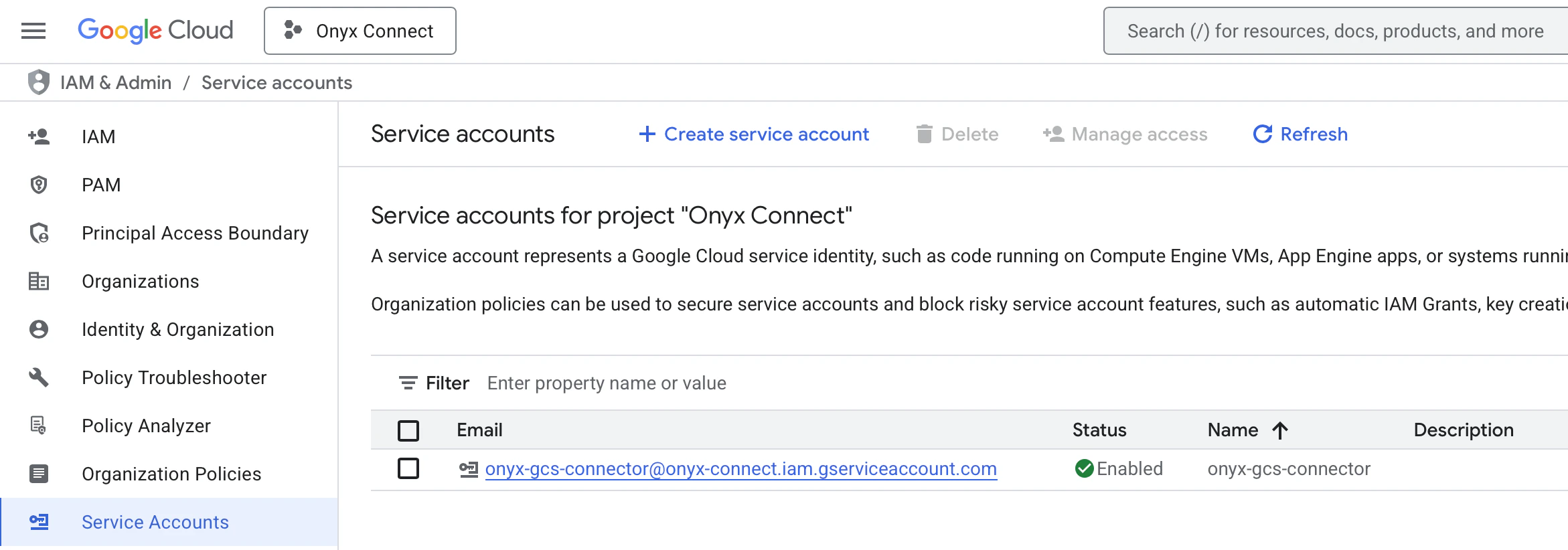
Go to the [Google Cloud Console Service Accounts Page](https://console.cloud.google.com/iam-admin/serviceaccounts)
Select your project and click **Create Service Account**.
Give your Service Account a name and a description.
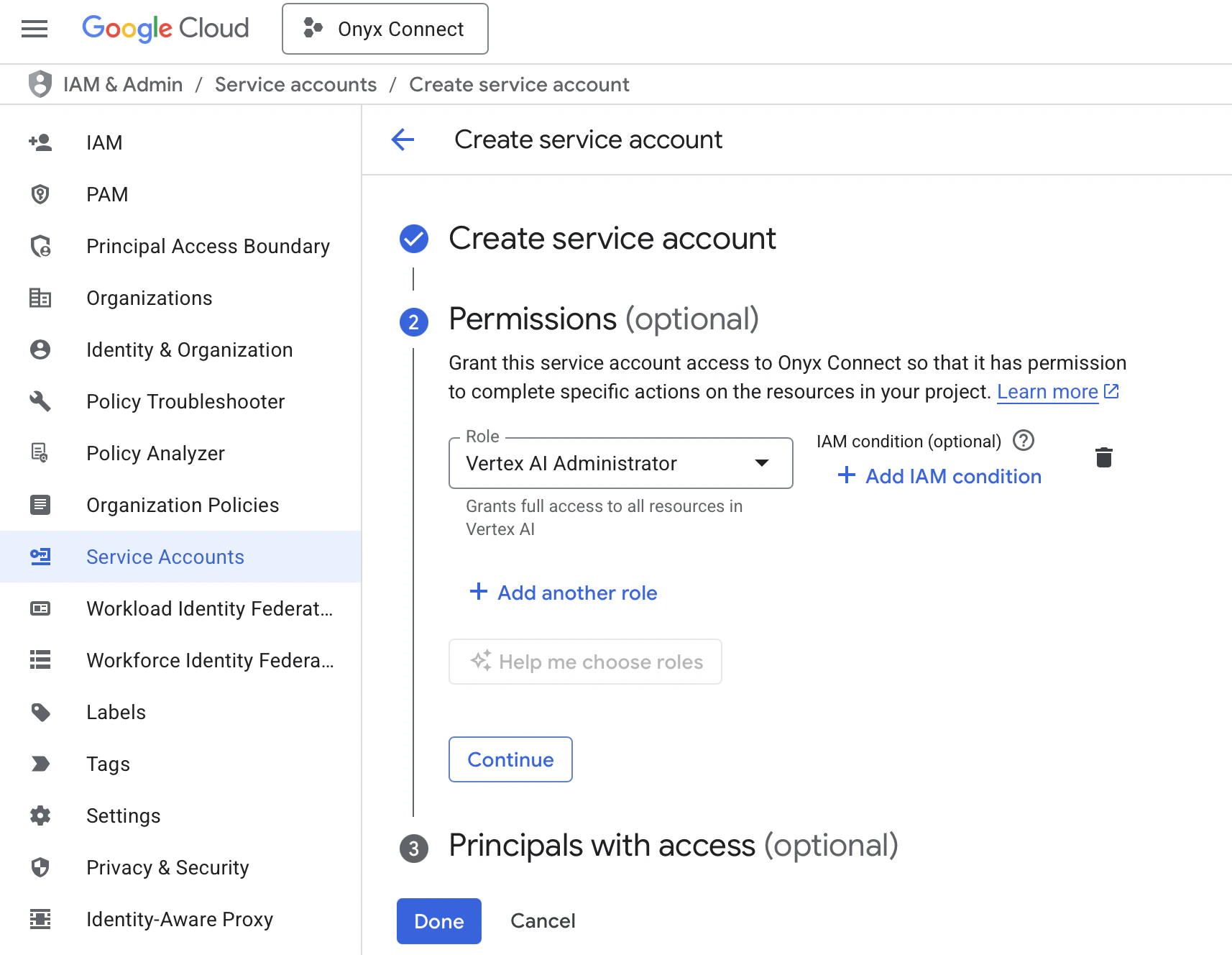
On the **Permissions** tab, grant the service account the **Vertex AI Administrator** role.
 Click your newly created Service Account → **Keys** → **Add Key** → **Create new key**.
Select **JSON** as the key type and click **Create**. The key will be automatically downloaded to your computer.
Access the Admin Panel from your user profile icon → **Admin Panel** → **LLM**
Select **GCP Vertex AI** from the available providers.
Give this configuration a **Display Name**.
Upload your JSON key to the **Credentials File** field.
If relevant, specify a **Location**.
The **Default Model** is selected automatically for new custom Agents and Chat sessions.
Designating a **Fast Model** is optional.
This **Fast Model** is used behind the scenes for quick operations such as evaluating the type of message,
generating different queries (query expansion), and naming the chat session.
If you select a Fast Model,
make sure it is a relatively quick and cost-effective model like GPT-4.1-mini or Claude 3.7 Sonnet.
In the **Advanced Options**, you will see a list of all models available from this provider.
You may choose which models are visible to your users in Onyx.
Setting visible models is useful when a provider publishes multiple models and versions of the same model.
Lastly, you may select whether or not the provider is public to all users in Onyx.
If set to private,
the provider's models will be available to Admins and User Groups you explicitly assign the provider to.
Click your newly created Service Account → **Keys** → **Add Key** → **Create new key**.
Select **JSON** as the key type and click **Create**. The key will be automatically downloaded to your computer.
Access the Admin Panel from your user profile icon → **Admin Panel** → **LLM**
Select **GCP Vertex AI** from the available providers.
Give this configuration a **Display Name**.
Upload your JSON key to the **Credentials File** field.
If relevant, specify a **Location**.
The **Default Model** is selected automatically for new custom Agents and Chat sessions.
Designating a **Fast Model** is optional.
This **Fast Model** is used behind the scenes for quick operations such as evaluating the type of message,
generating different queries (query expansion), and naming the chat session.
If you select a Fast Model,
make sure it is a relatively quick and cost-effective model like GPT-4.1-mini or Claude 3.7 Sonnet.
In the **Advanced Options**, you will see a list of all models available from this provider.
You may choose which models are visible to your users in Onyx.
Setting visible models is useful when a provider publishes multiple models and versions of the same model.
Lastly, you may select whether or not the provider is public to all users in Onyx.
If set to private,
the provider's models will be available to Admins and User Groups you explicitly assign the provider to.