> ## Documentation Index
> Fetch the complete documentation index at: https://danswer-mintlify-deep-research-1773355783.mintlify.site/llms.txt
> Use this file to discover all available pages before exploring further.
# Overview
> Analytics and usage monitoring in Onyx
**Enterprise Edition Feature**
This feature requires an Enterprise plan. [View plans](/admins/billing/overview)
or [contact sales](https://onyx.app/contact-sales) to learn more.
Onyx provides comprehensive analytics to help you understand how your users are interacting with the system and monitor
usage patterns across your organization.
## Query History
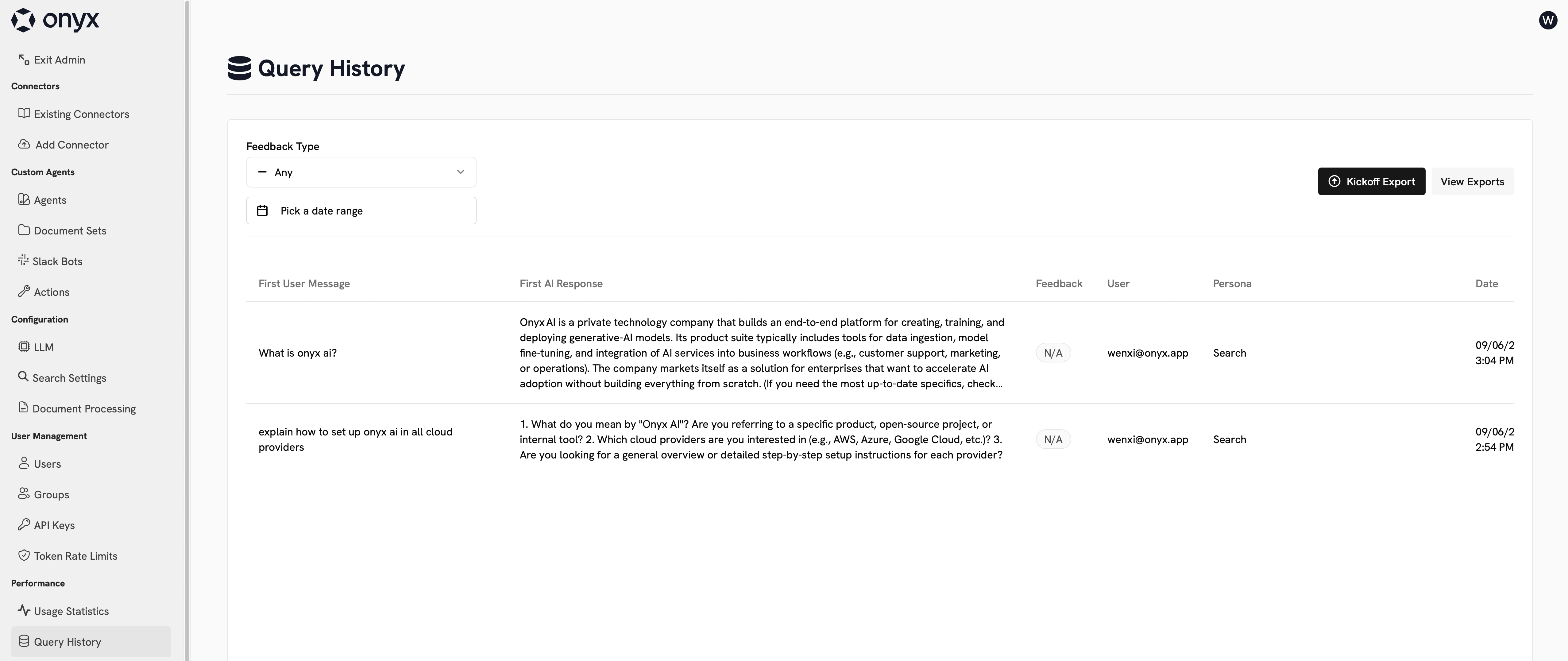
On the Query History page, you can see a log of all messages sent to Onyx.
This includes messages sent to the Slack bot and through API keys.
 ### Exporting Query History
You can export your query history to a CSV file.
This export can be time consuming depending on the size of your query history.
## Usage Statistics
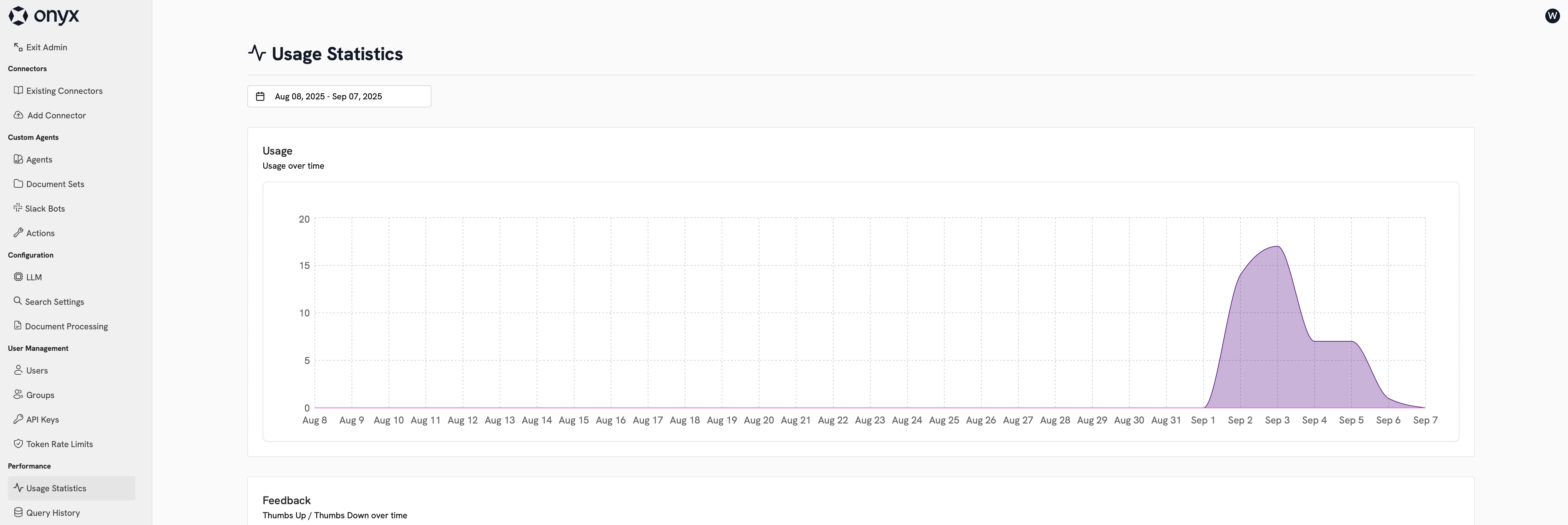
On the Usage Statistics page, you can see a summary graph of the active users and number of queries sent to Onyx.
Additionally, you view the thumbs up and thumbs down feedback your users are giving their AI answers.
### Exporting Query History
You can export your query history to a CSV file.
This export can be time consuming depending on the size of your query history.
## Usage Statistics
On the Usage Statistics page, you can see a summary graph of the active users and number of queries sent to Onyx.
Additionally, you view the thumbs up and thumbs down feedback your users are giving their AI answers.
 ## Custom Analytics
Onyx Enterprise Edition allows you to configure a custom analytics provider.
Set the `CUSTOM_ANALYTICS_SECRET_KEY` environment variable to some random string.
Make sure you have the value saved temporarily somewhere.
Re-deploy Onyx.
Go to the Custom Analytics tab in the Admin Panel.
This snippet would normally be placed within the `` tags at the base of your project. For the Secret Key,
use the value you saved in Step 1.
The `
## Custom Analytics
Onyx Enterprise Edition allows you to configure a custom analytics provider.
Set the `CUSTOM_ANALYTICS_SECRET_KEY` environment variable to some random string.
Make sure you have the value saved temporarily somewhere.
Re-deploy Onyx.
Go to the Custom Analytics tab in the Admin Panel.
This snippet would normally be placed within the `` tags at the base of your project. For the Secret Key,
use the value you saved in Step 1.
The `