

Guide
1
Create Okta Application
Navigate to the Okta Admin Console → Applications → Create App Integration.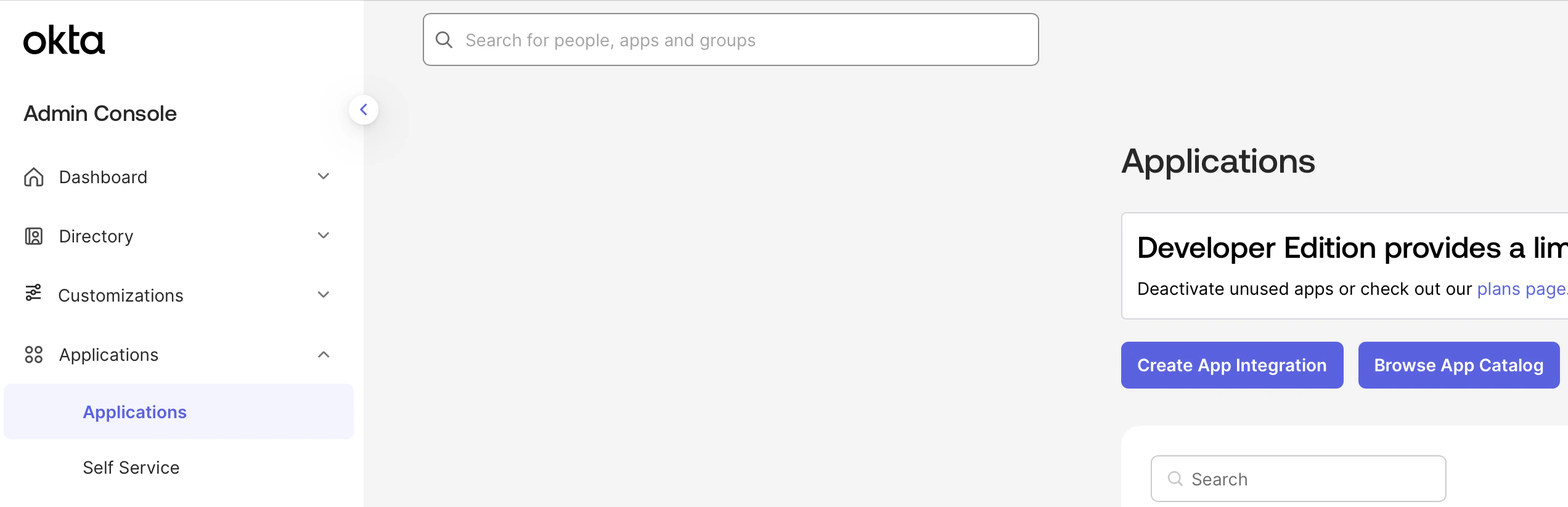
2
Configure Okta Application
Select OIDC and Web Application.Name your application Determine whether all users or select groups may access Onyx or skip this step and assign users later.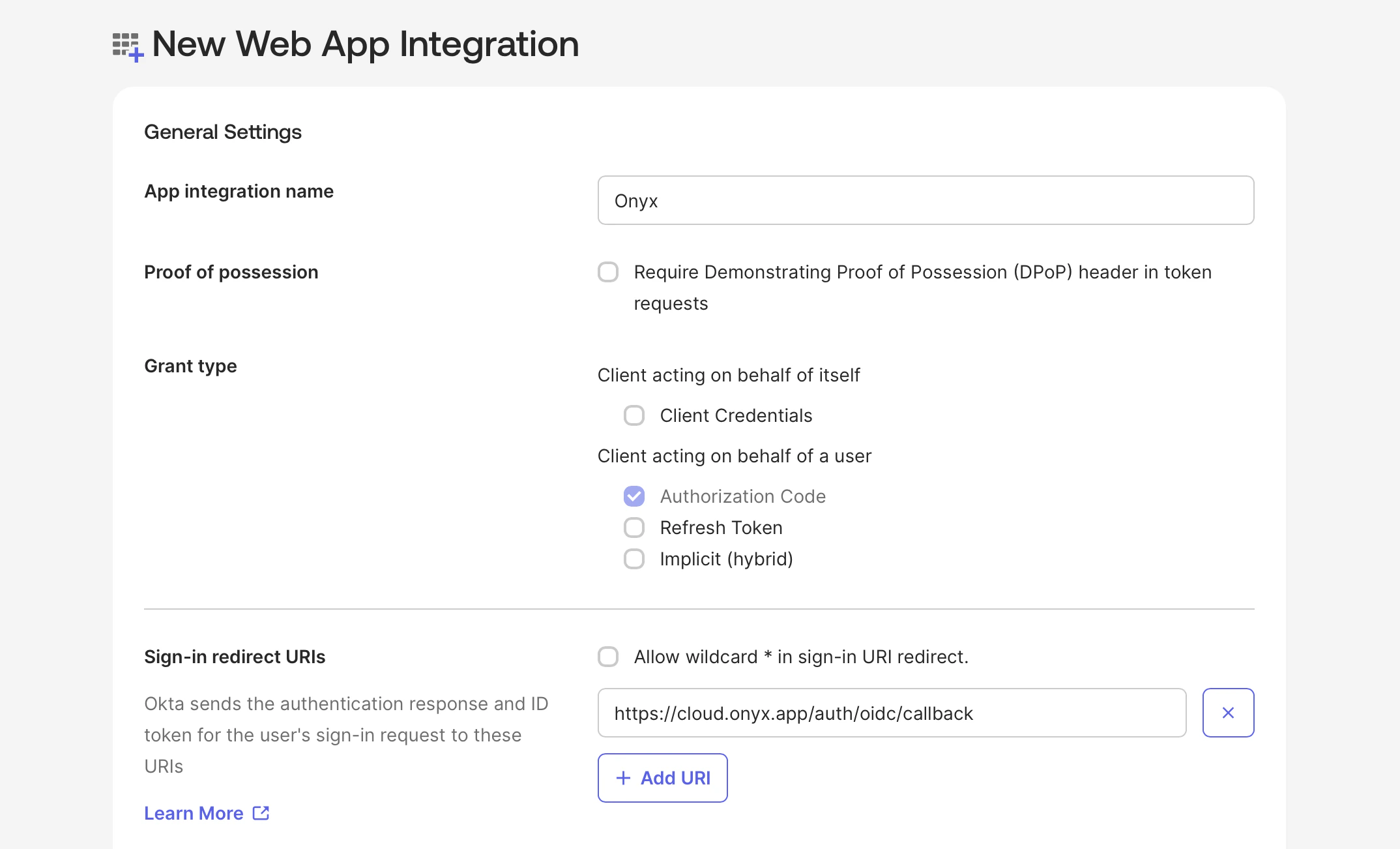
Onyx.Add a Sign-in redirect URI3
Save OIDC Credentials
Create the new Application and save the Client ID and Client Secret.Also note your Okta Base URL in the format of 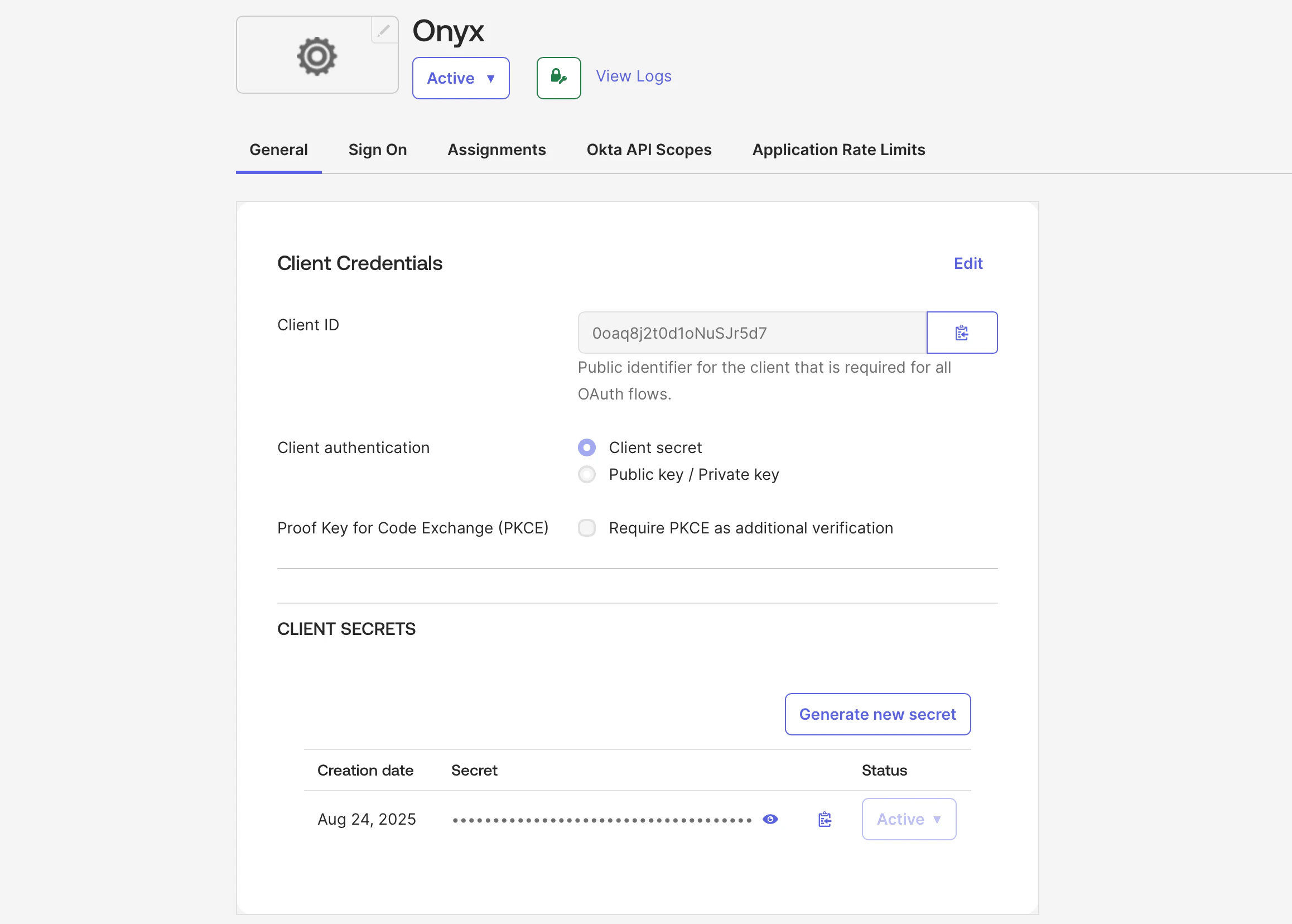
https://<YOUR_ORG_NAME>.okta.com.After saving your application,
you can upload the Onyx logo or your white-labeled logo by clicking the gear icon next to the app title Onyx
4
Configure Onyx for OIDC
Configure Onyx with the following environment variables in your
.env or values.yaml file (Docker and Kubernetes,
respectively)..env
If you’re using Docker but don’t have a
.env file,
copy onyx/deployment/docker_compose/env.prod.template to a new .env file in the same directory.values.yaml