

How it works
The R2 connector pulls in all documents from the specified Cloudflare R2 bucket. It supports various file formats including PDF, DOC, DOCX, TXT, and more. Documents are updated every 1 day.Setting up
Authorization
1
Open R2 dashboard
Log into your Cloudflare dashboard. Navigate to “R2” in the sidebar and click on “Manage R2 API Tokens”.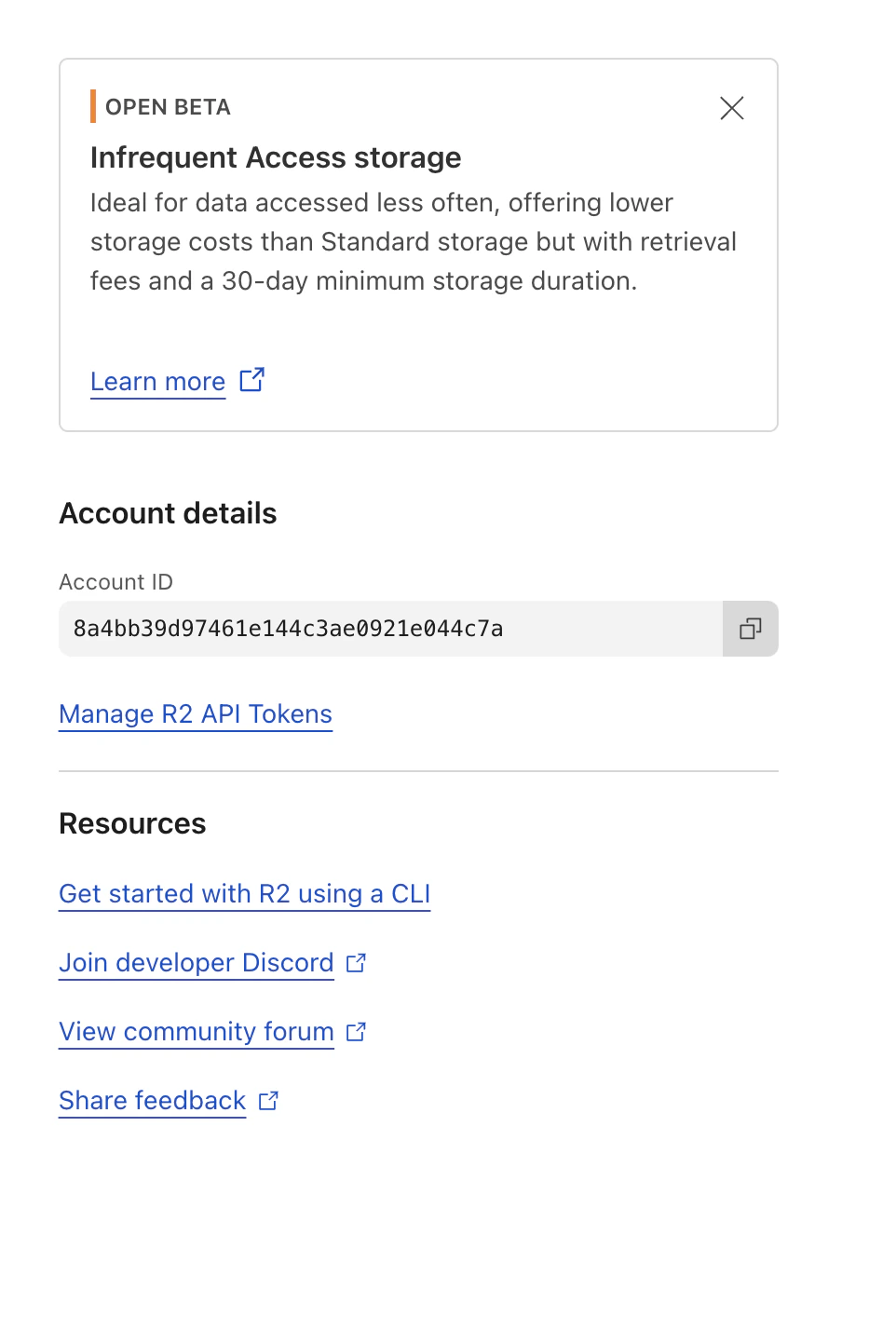
2
Create API token
Click “Create API token”.
3
Set permissions
Give your token a name (e.g., “OnyxR2Connector”) and select the appropriate permissions (Object Read only).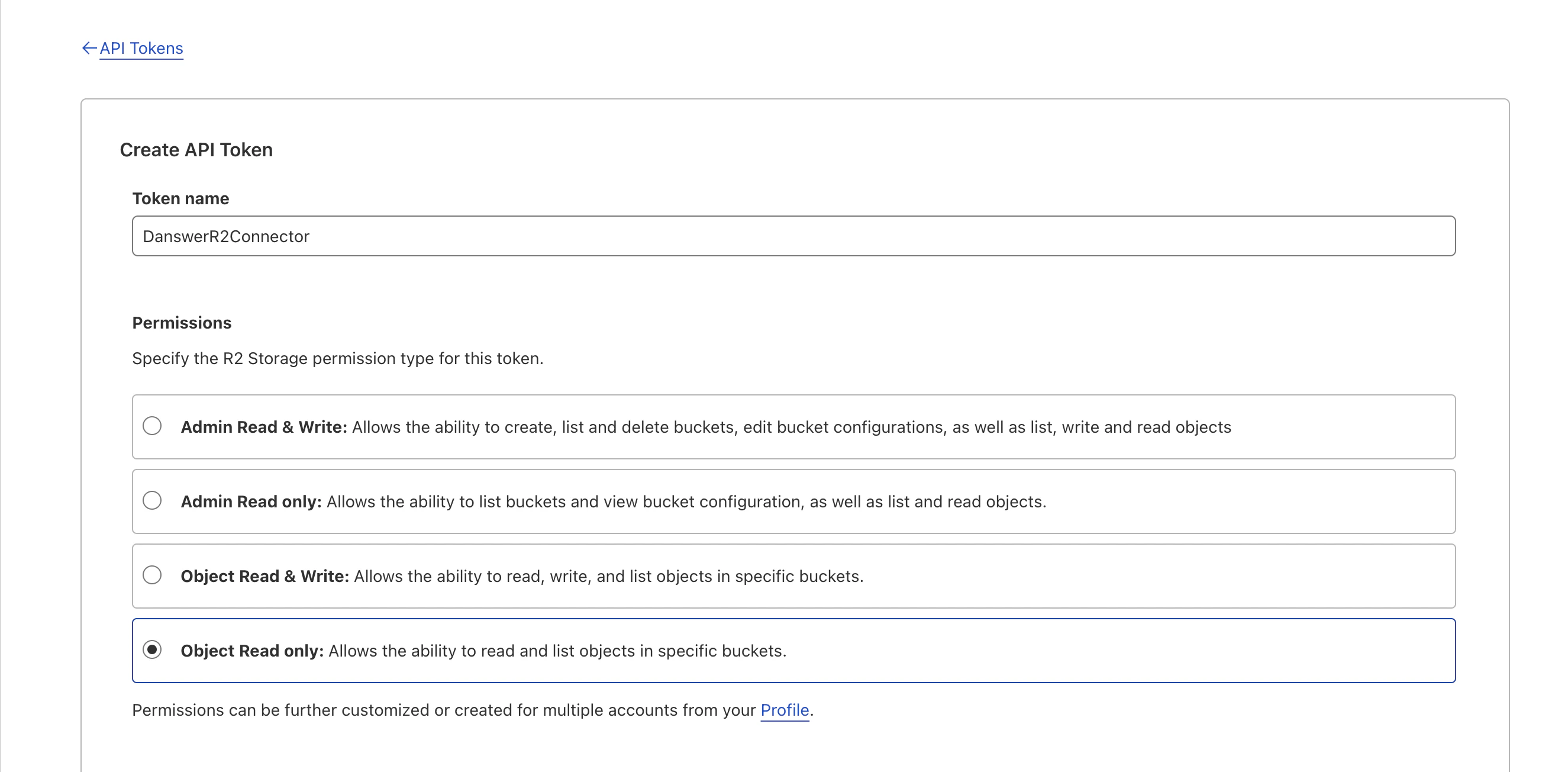
4
Copy keys and Account ID
Click “Create API Token”. On the next screen, copy your Access Key ID and Secret Access Key immediately. Then,
to find your Account ID, go to the Overview page; the Account ID is listed in the URL as the final substring.
Indexing
1
Open R2 connector
Navigate to the Admin Panel and select the R2 Connector.
2
Enter credentials
In Step 1, provide your R2 credentials (Access Key ID, Secret Access Key, and Account ID).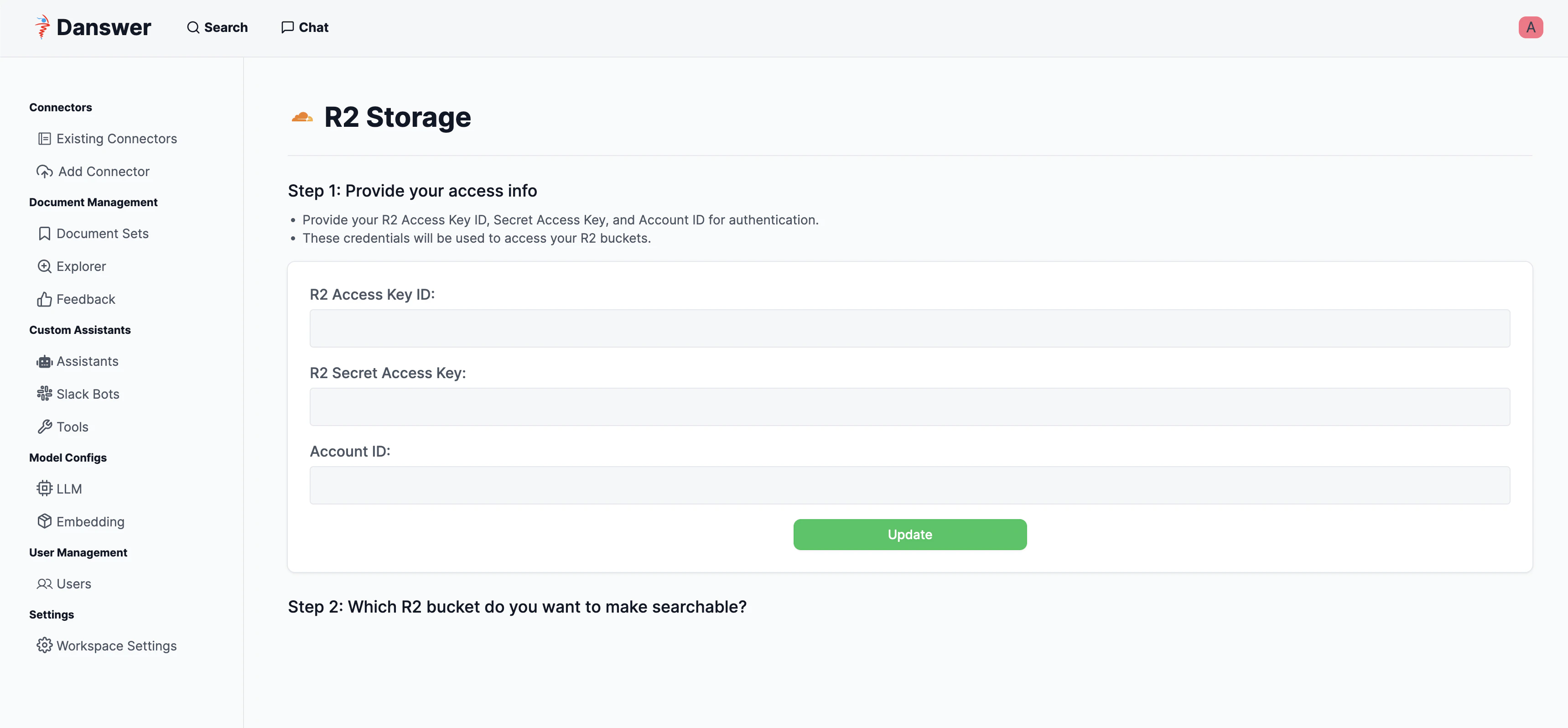
3
Save credentials
Click “Update” to save your credentials.
4
Select bucket
In Step 2, specify which R2 bucket you want to make searchable.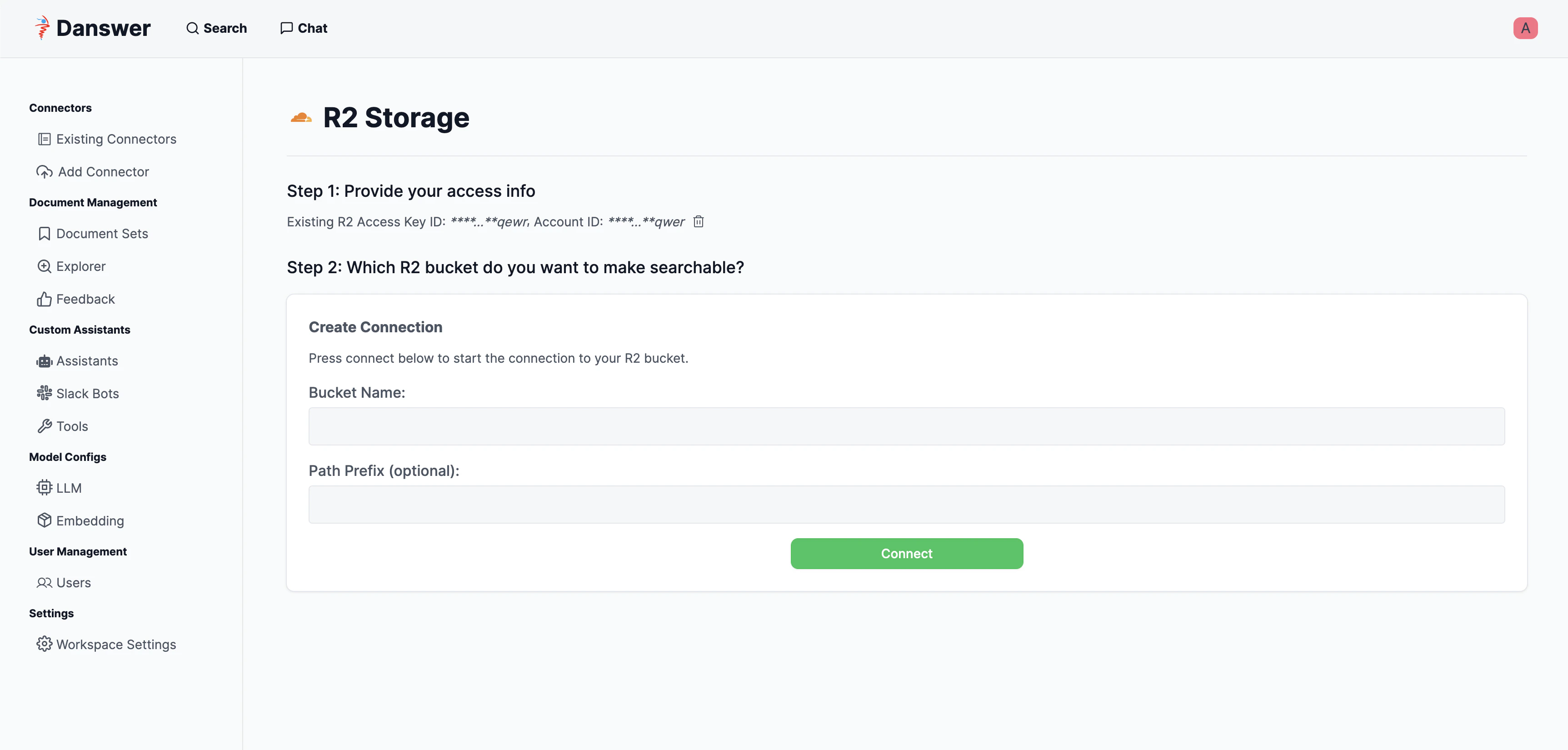
5
Start indexing
Click “Connect” to begin indexing.